Report Generator
The Report Generator plugin is available on Hosted CTFd instances on the Plus plan and above.
The Report Generator creates a polished, shareable report of your CTF — an event summary, visual analytics, the full scoreboard, and a detailed per-participant performance breakdown. It is useful for post-event debriefs, sharing results with stakeholders, and assessing skill coverage in trainings and assessments.
Download a sample PDF report to see what a generated report looks like.
Generating a Report
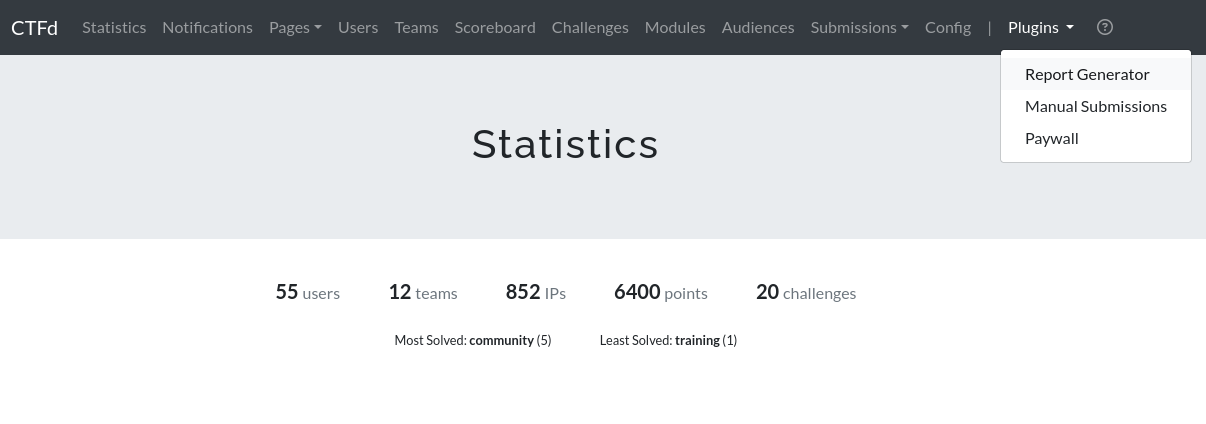
Open Admin Panel → Plugins → Report Generator. Only admins can access the plugin.
Configure the report options and click Download PDF Report (v2) to download a PDF, or Open HTML Report (v1) to open an HTML version in a new tab.
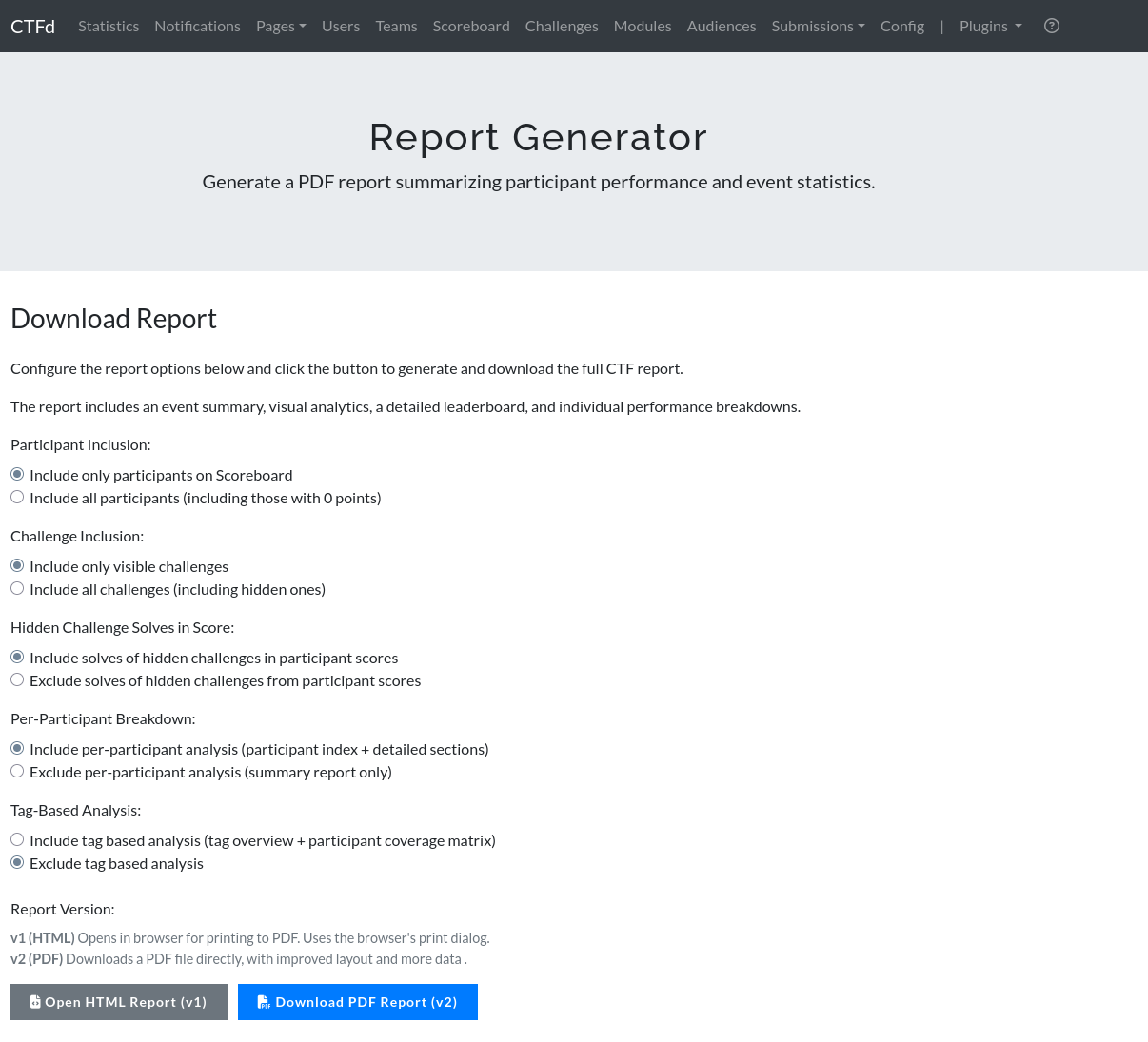
Report Versions
- v2 (PDF) — Downloads a PDF file directly, with an improved layout and more data. This is the recommended format.
- v1 (HTML) — Opens the report in your browser. Use your browser's print dialog to save it as a PDF.
Reports are generated on demand from live data, so you can generate them at any point — during the event for a snapshot, or after it ends for the final results. All dates and times in the report are in UTC.
What's in the Report
- Event Summary — Headline statistics: active users and teams versus total registered, challenge count, unsolved challenges, correct/incorrect/total submissions, and the most and least solved challenges.
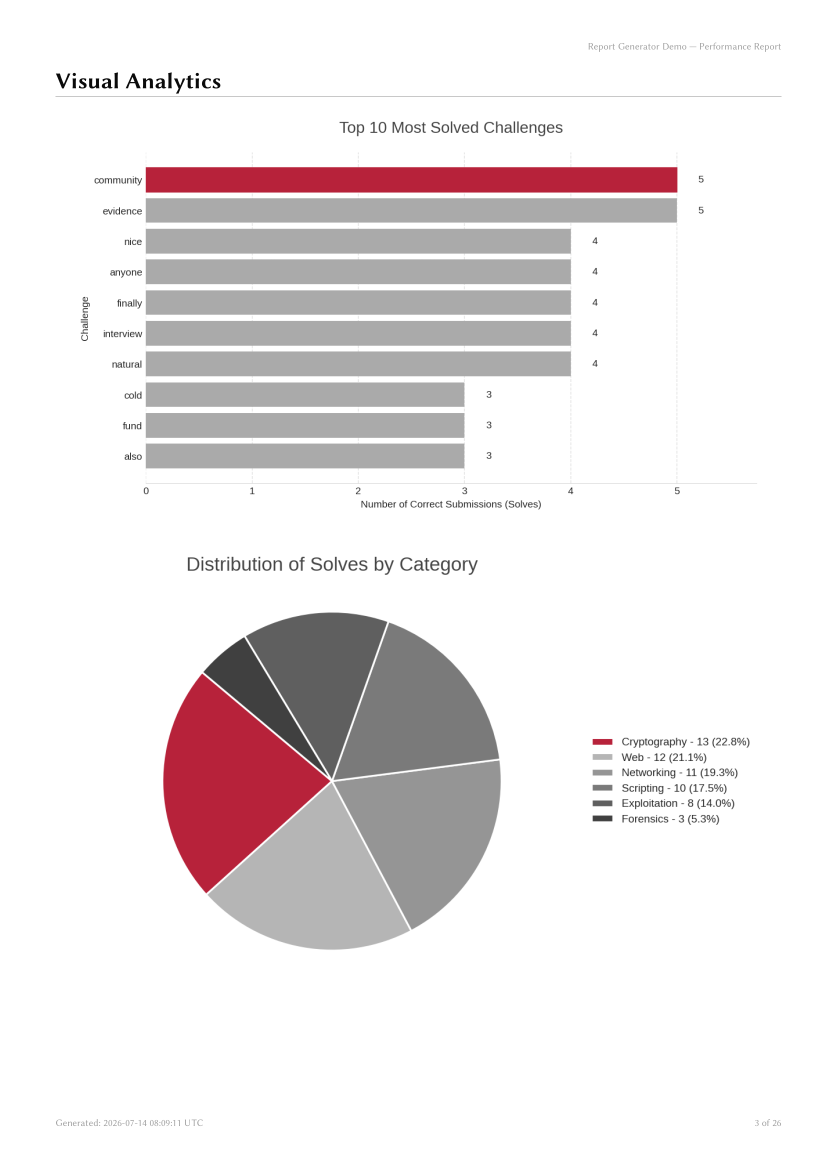
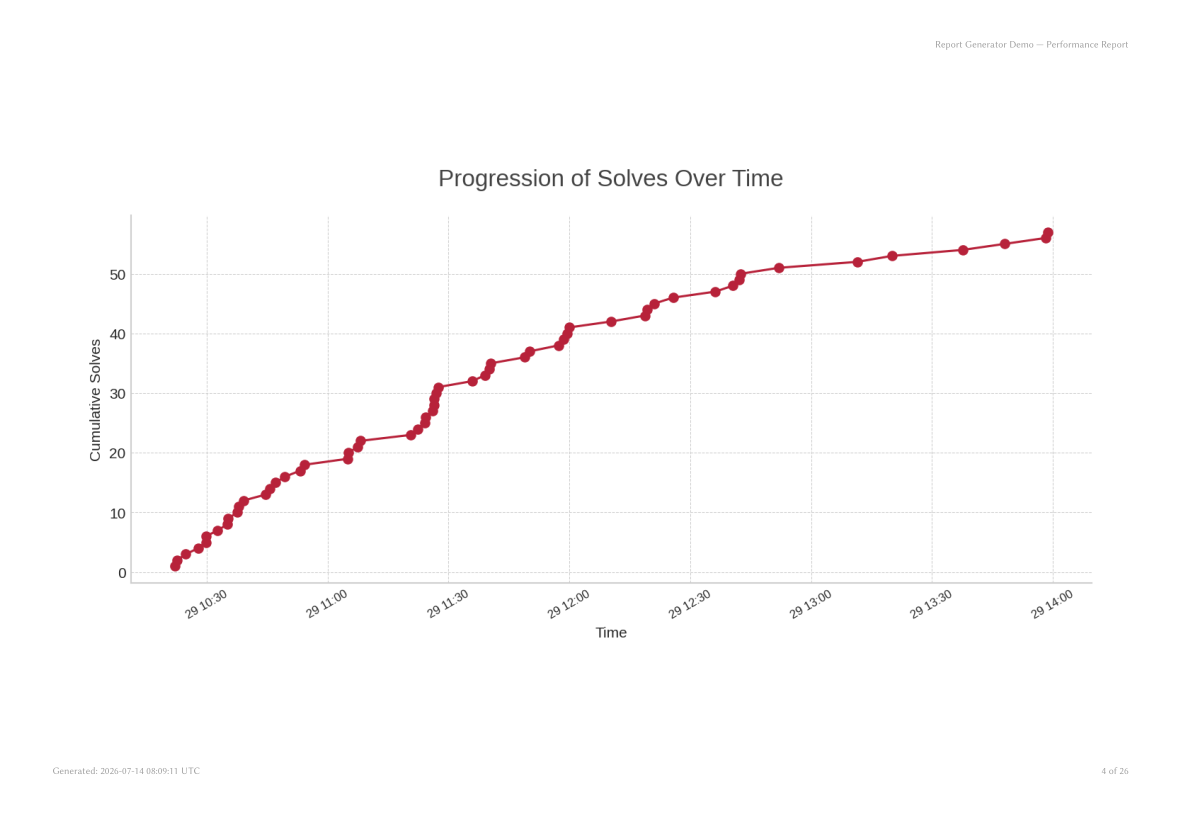
- Visual Analytics — Charts for the top 10 most solved challenges, the distribution of solves by category, and the progression of solves over time.
- Tag-Based Analysis (optional) — A tag overview table and a participant coverage matrix. See Tag-Based Analysis.
- Scoreboard Summary — The ranked scoreboard. In team mode, each team entry includes a per-member solves and score table, followed by an Individual Scoreboard ranking every scoring user across all teams.
- Detailed Participant Analysis (optional) — An index of participants followed by one section per participant: rank, score, correct/incorrect submission counts, team member statistics, tag coverage (if enabled), and a full challenge-by-challenge table showing which challenges were solved (with solver name, solve time, and number of failed attempts before the solve), attempted but not solved, or not attempted at all.
The report automatically adapts to your instance's user mode: in team mode it reports on teams (with member-level detail and an individual scoreboard), and in user mode it reports on individual users.
Report Options
Participant Inclusion
Controls which participants get a section in the report.
- Include only participants on Scoreboard (default) — Only participants with a non-zero score are included.
- Include all participants — Participants with 0 points are also included, in a separate section sorted by name.
Banned and hidden users or teams are never included in the report, regardless of this setting.
Challenge Inclusion
Controls which challenges appear in statistics, charts, and per-participant challenge tables.
- Include only visible challenges (default) — Hidden challenges are left out of the report entirely.
- Include all challenges — Hidden challenges are included everywhere, alongside visible ones.
Hidden Challenge Solves in Score
Controls whether solves of hidden challenges count toward participant scores, independently of whether hidden challenges are shown in the report.
- Include solves of hidden challenges in participant scores (default) — Matches CTFd's live scoreboard behavior: if a challenge was solved and later hidden, the points still count.
- Exclude solves of hidden challenges from participant scores — Scores and solve counts are recalculated from visible challenges only.
Per-Participant Breakdown
Controls the size and depth of the report.
- Include per-participant analysis (default) — The report contains the participant index and a detailed section for every included participant.
- Exclude per-participant analysis — Produces a summary-only report (event summary, charts, and scoreboard). Recommended for large events or when sharing results broadly.
Tag-Based Analysis
- Exclude tag based analysis (default)
- Include tag based analysis — Adds a tag overview and coverage matrix based on challenge tags.
When enabled, the report includes:
- Tag Overview — For each tag: how many challenges carry it, the average coverage across scoring participants, and which of its challenges went unsolved by everyone.
- Coverage Matrix — One row per scoring participant, one column per tag, with each cell showing
solved / totalfor that tag, color-coded (fully covered, partially covered, gap). - Per-participant tag coverage — Each participant's detail section gains a tag coverage table.
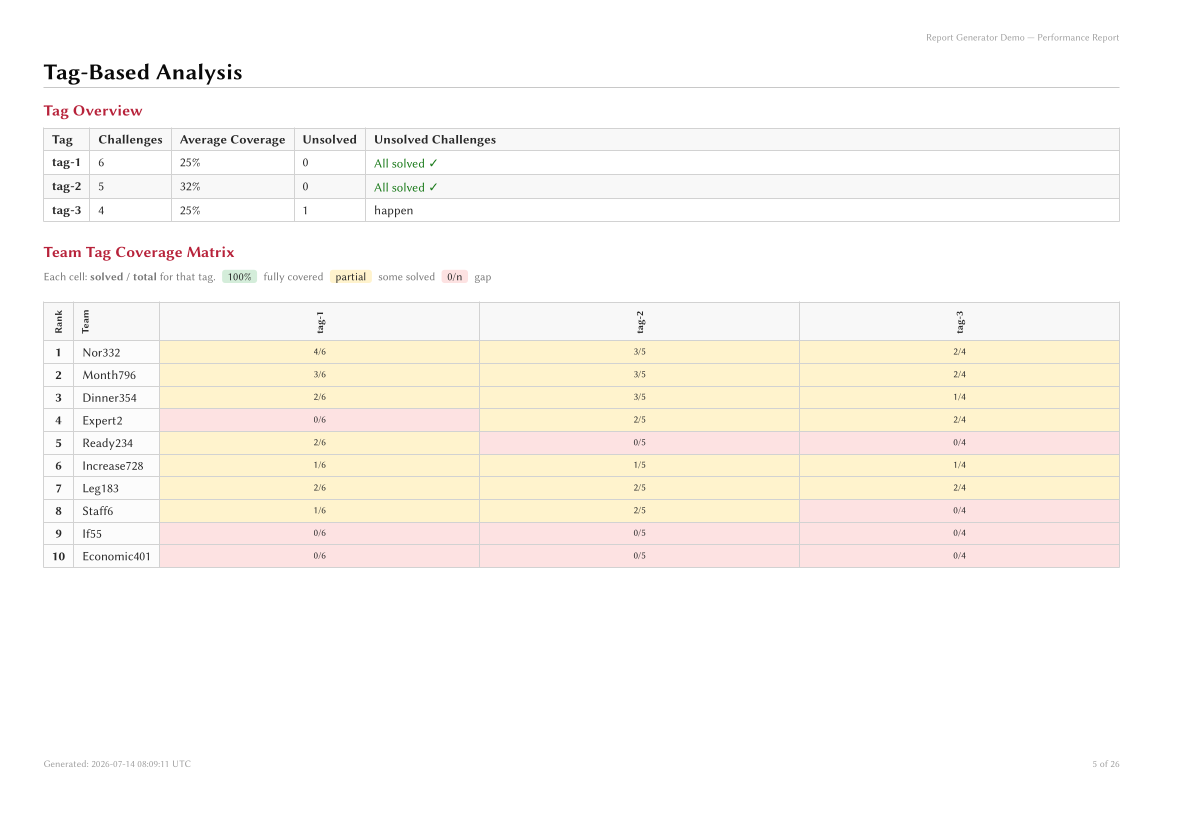
Tag-based analysis is especially useful for trainings and assessments: tag your challenges by skill or topic (e.g. forensics, owasp-top-10, linux-basics) and the report shows exactly which skills each participant demonstrated and where the gaps are.
Custom Logo
The report's cover page and header use your instance's logo, configured under Admin Panel → Config → Theme. PNG and JPEG logos are supported in the PDF report. If no logo is set, the default CTFd logo is used.
Common Recipes
- Executive summary for stakeholders — Exclude the per-participant breakdown for a short report with the event summary, charts, and scoreboard.
- Complete post-event archive — Include all participants and all challenges to capture the full state of the event, including participants who registered but never scored.
- Training / assessment coverage report — Tag your challenges by skill, then enable tag-based analysis and keep the per-participant breakdown to get a skills matrix for every participant.
- Final competitive results — Use the defaults: only scoreboard participants and visible challenges, matching what players saw on the live scoreboard.
FAQ
Why is a participant missing from the report?
Participants with a score of 0 are excluded by default — set Participant Inclusion to Include all participants to add them. Hidden and banned accounts are always excluded.
Why do the scores in the report differ from the live scoreboard?
The most common causes:
- Hidden challenge solves are excluded — If you set Exclude solves of hidden challenges from participant scores, scores are recalculated using visible challenges only.
- The report was generated at a different time — Reports reflect the data at the moment of generation. Regenerate the report after the event ends for final numbers.
Scores in the report include award adjustments (bonuses and penalties), and ties are broken the same way as CTFd's scoreboard — the participant who reached their score first ranks higher.
What does the "attempts" number next to a solved challenge mean?
It is the number of incorrect submissions the participant made on that challenge before solving it. For challenges with an Attempted status, it is the total number of incorrect submissions.
How do I handle a challenge that was hidden mid-event?
Keep the default Include solves of hidden challenges in participant scores so participants who solved it before removal keep their points — this matches the live scoreboard. If you want the report to pretend the challenge never existed, choose Exclude solves of hidden challenges from participant scores and keep Include only visible challenges.
How do I report on individual users in team mode?
This is built in: the Individual Scoreboard section ranks every scoring user across all teams, and each team's sections include per-member solves and scores.
The report takes long to generate or is very large. What can I do?
Report size grows with the number of participants, since each one gets a detailed challenge table. For large events, exclude the per-participant breakdown to generate a compact summary report.
Can I change the logo on the report?
Yes — the report uses your instance's configured logo (Admin Panel → Config → Theme). Use a PNG or JPEG image for best results in the PDF report.
What timezone are the times in the report?
All dates and times — the event start/end, solve times, and the generation timestamp — are in UTC.